 HAPPY IMG
A LinkedIn banner should support your profile, not fight it. The best banners stay readable behind the profile avatar and still look intentional on wider screens.
Step 1: Start with the target format in mind
LinkedIn banners are wide, shallow images. That means the most important text and graphics should not sit too close to the lower-left area where profile UI elements can overlap.
Step 2: Open the banner tool
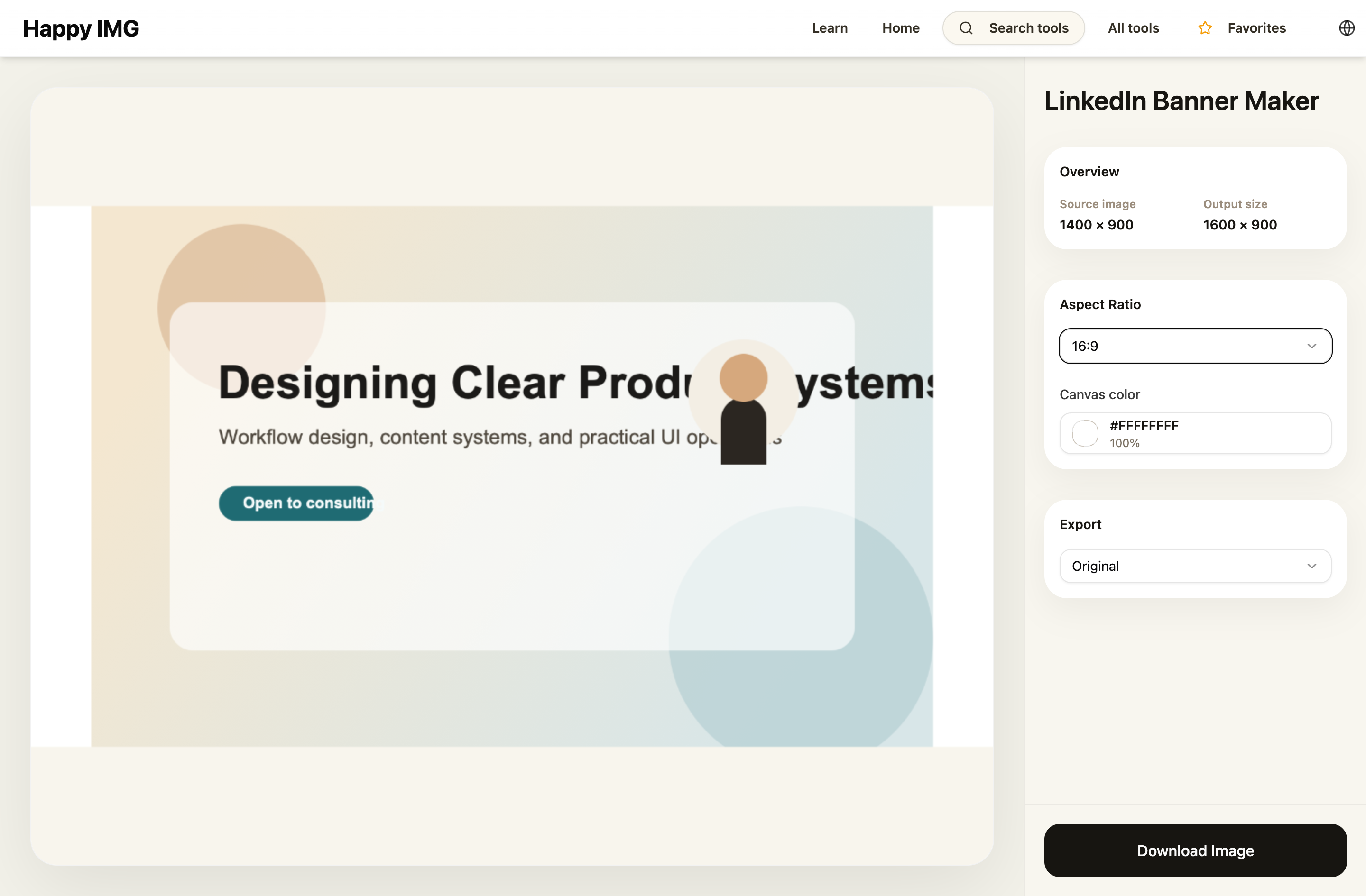
Use LinkedIn Banner Maker so you can work directly in the right canvas shape instead of guessing with a generic editor.
Step 3: Build around one message
Choose one clear direction:
- personal brand statement
- role or specialty
- company positioning
- portfolio-style visual identity
Trying to fit every achievement into one banner usually makes it weaker.
Step 4: Keep text large and sparse
Banner text should survive quick scanning. Use short phrases, good contrast, and generous spacing. If you need a logo, add it with Add Logo to Image, but keep it secondary to the overall composition.
Step 5: Check the mobile feel
Even if you design on desktop, the banner should still feel legible and balanced on narrower screens. Avoid tiny text and edge-hugging details.
Layout rule
Give the left side extra caution because profile elements may overlap there. If the design depends on a small logo or line of text in that zone, it is fragile.
Final review
Export once, view it at actual size, and ask a simple question: does the banner support credibility in under two seconds? If not, remove elements until the answer becomes yes.